FolderViz Perspective
The FolderViz Perspective helps you understand and explore your files, folders, and tags through interactive visualizations. Instead of browsing your data as plain lists, FolderViz lets you see structures, relationships, and sizes at a glance—making it easier to analyze complex folders or large collections of files.
Originally developed to demonstrate TagSpaces’ extensibility, FolderViz has evolved into a powerful tool for everyday users who want deeper insights into how their data is organized.
FolderViz offers five different views, which you can switch using the toolbar at the top of the perspective.
How to interact with FolderViz
- Hover over a file or folder to see a thumbnail (if available) and additional details
- Click a folder to open/close it (if supported)
- Double-click a folder to navigate into it
- Click a file to open it in the preview area
- Click and drag to move the visualization
- Scroll with the mouse to zoom in and out
Your selected view is saved per folder. When you return to the same folder using the FolderViz Perspective, TagSpaces automatically restores your preferred view—helping you stay focused and productive.
In the vertical menu at the top-left of each view, you’ll find useful controls such as redrawing the visualization, adjusting its appearance, or hiding the menu entirely (handy when taking screenshots).
File colors follow the configured file type colors from the settings, while tag colors are taken from your tag library.
💡 Note: Very large folders may impact performance in these views.
Folder Tree View
The Folder Tree View displays your folder structure as an expanded tree, similar to a mind map. It’s ideal for understanding folder hierarchies and how files are organized across directories.
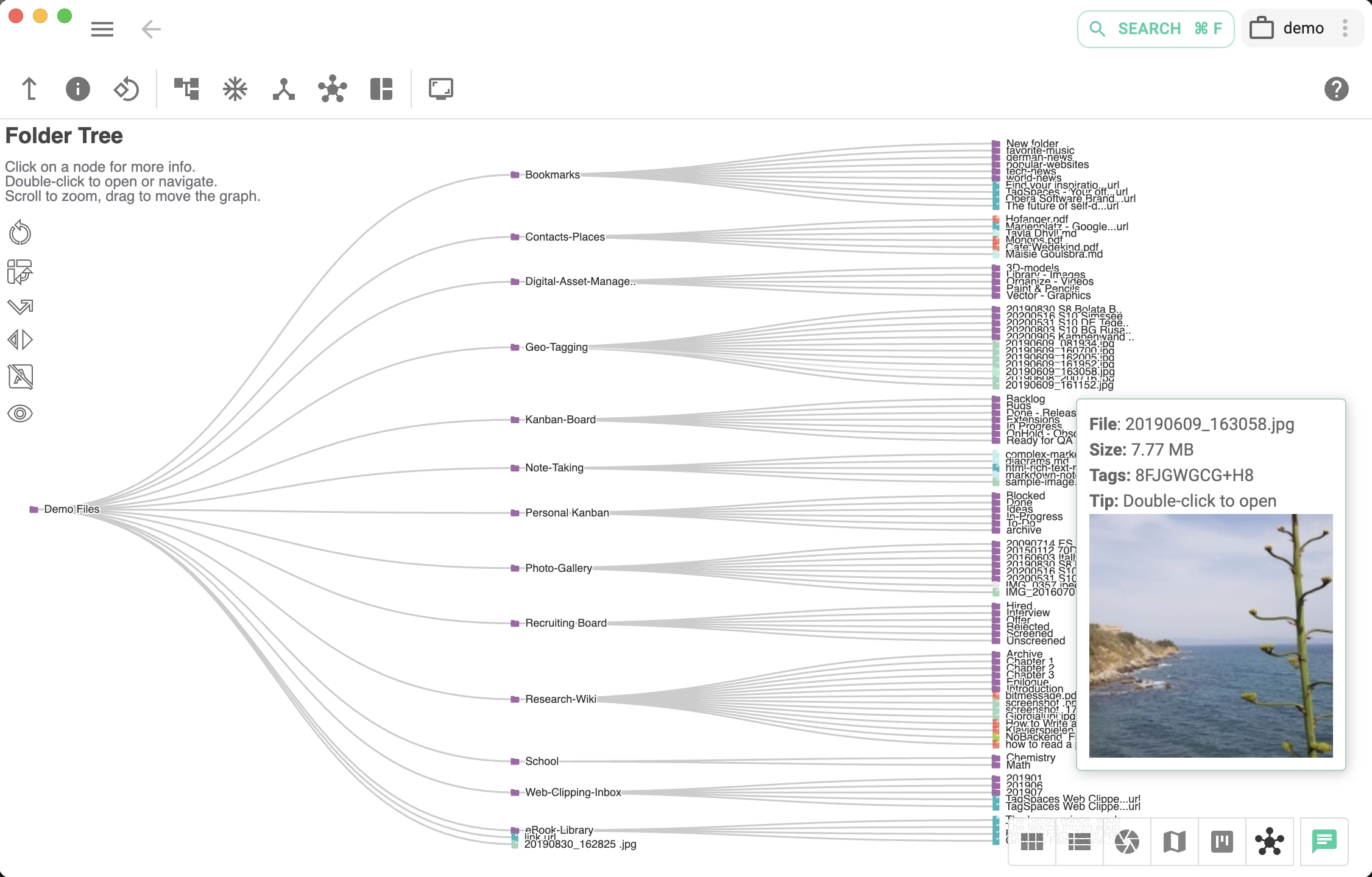
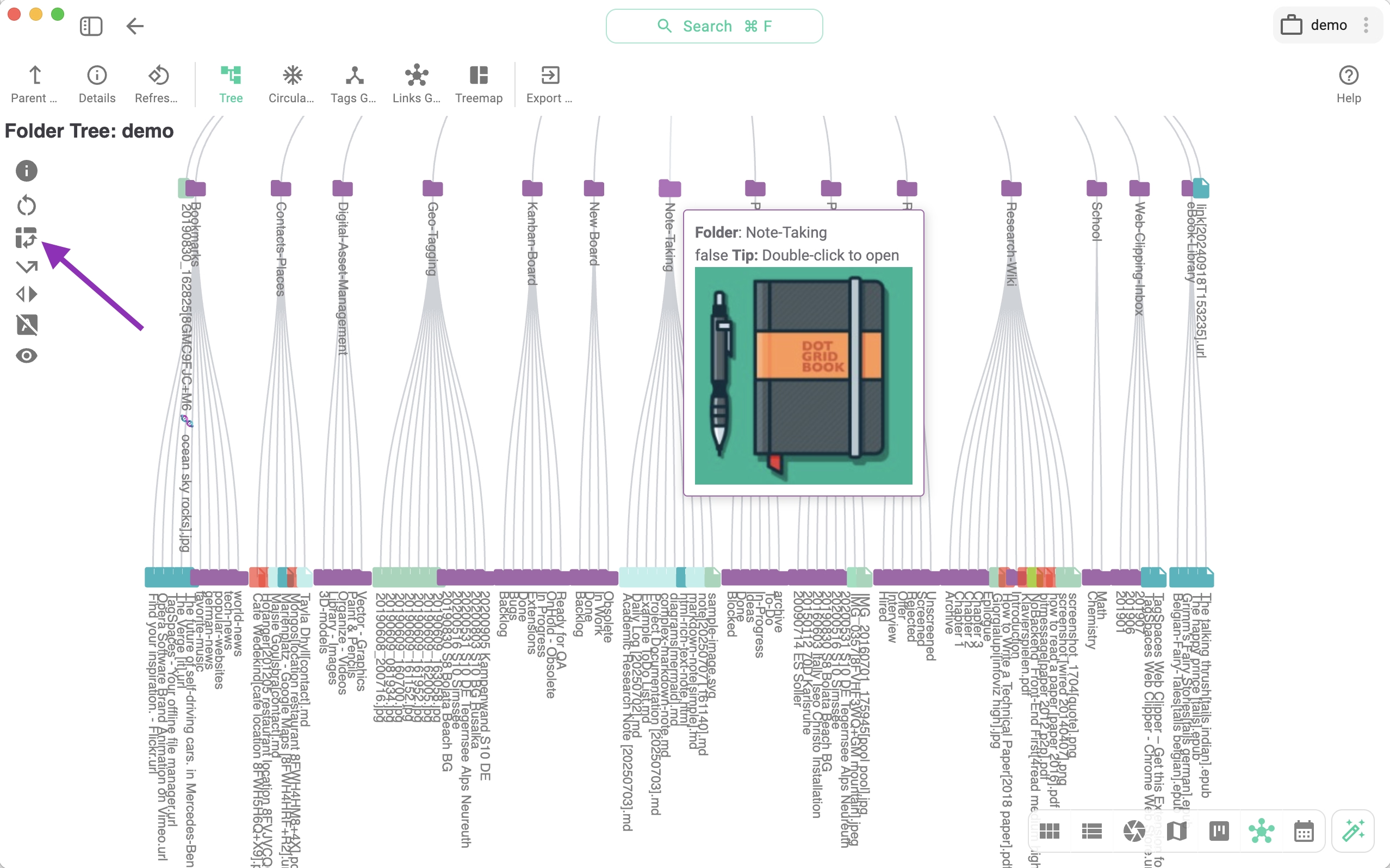
You can rotate the tree by clicking the arrow button, switching between horizontal and vertical layouts.
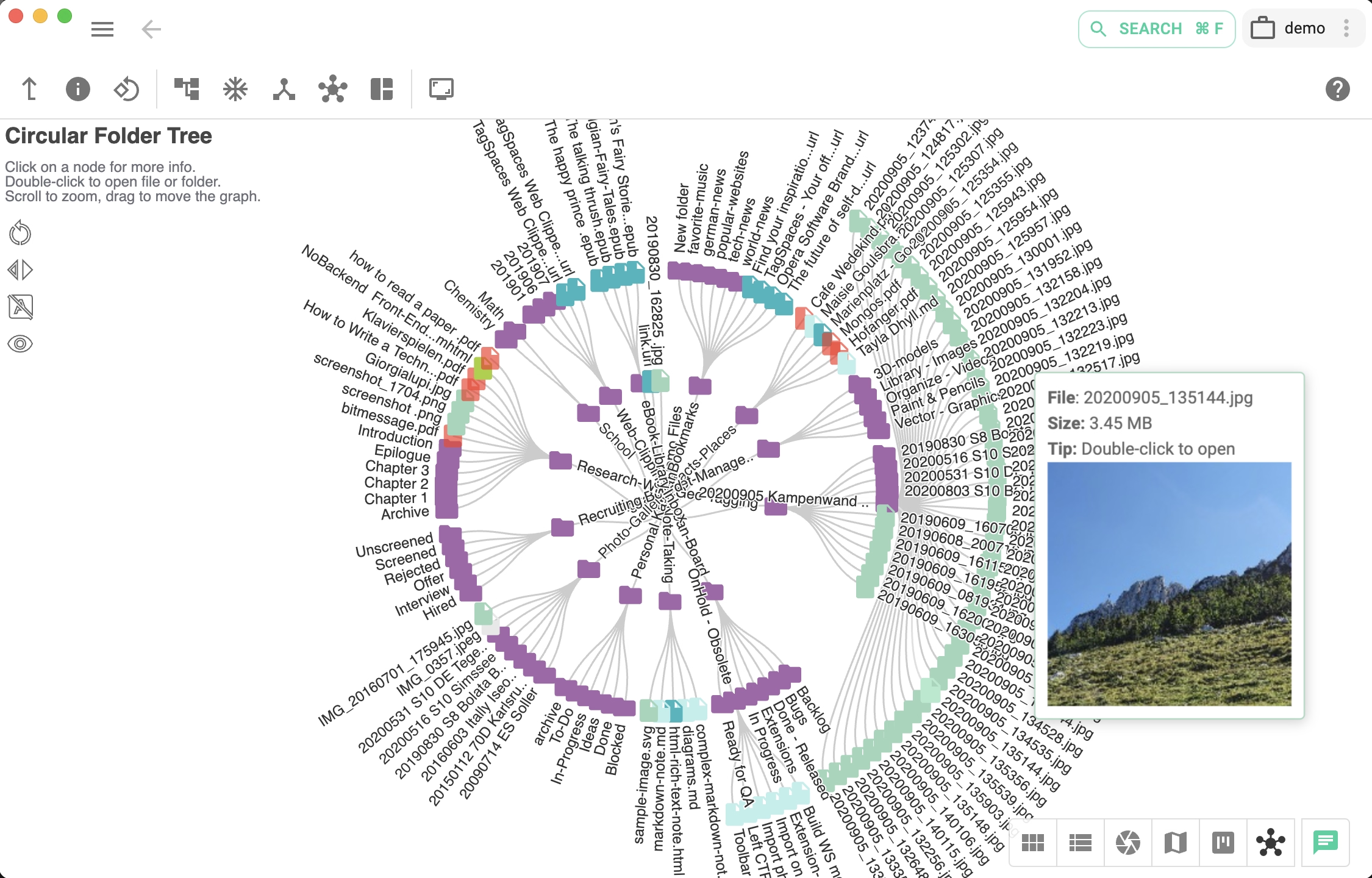
Circular Folder Tree View
This view presents the same folder hierarchy as the Folder Tree View but in a circular layout. It’s especially useful for spotting heavily populated branches in complex directory structures.
Tags Graph View
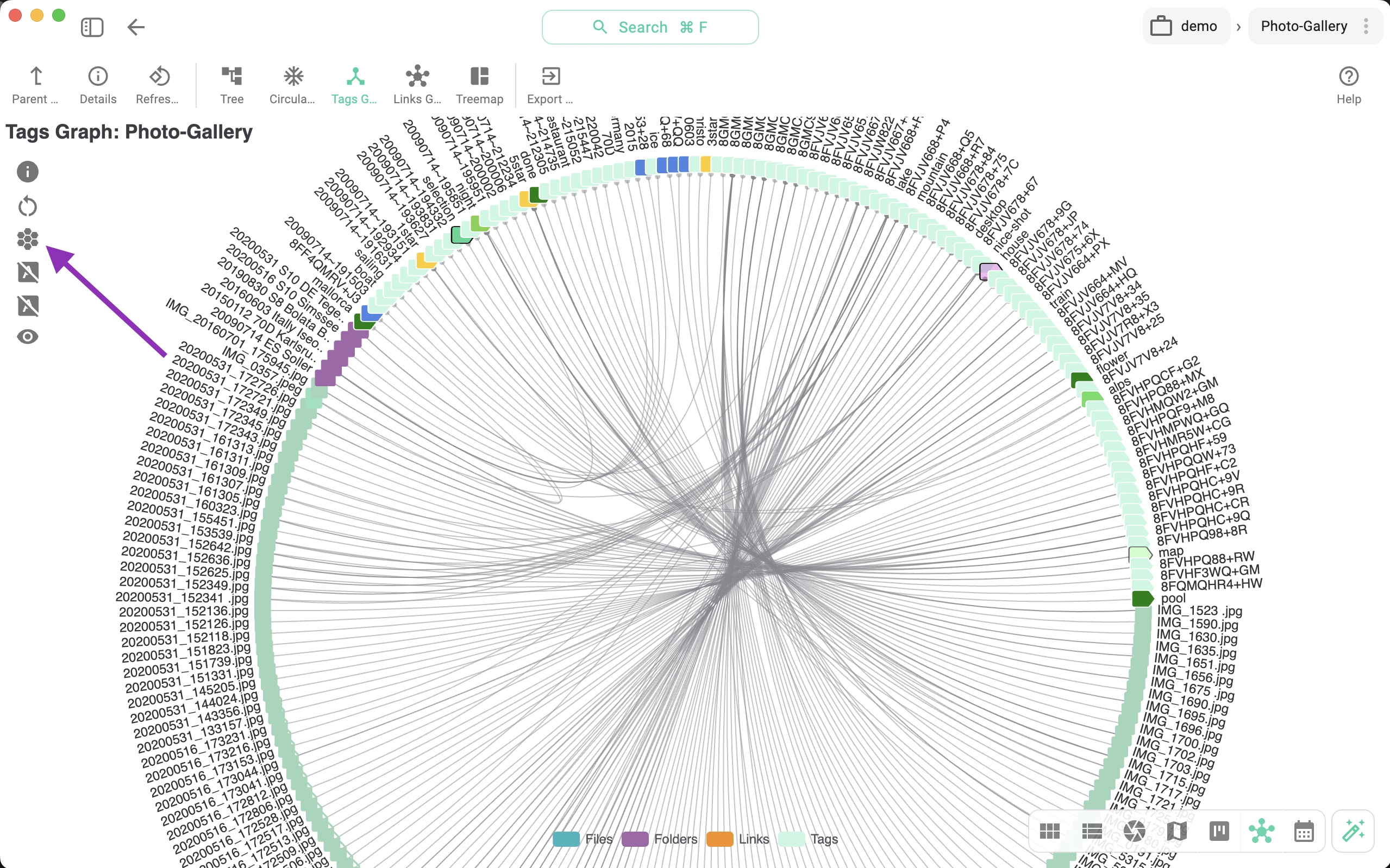
The Tags Graph View visualizes all tags used in a location and their associated files and folders. It’s a powerful way to explore how your content is connected through tags.
- Double-click a tag to instantly search for all files and folders using it
- Click on the elements (files, folders, links, tags) in the legend located at the bottom of the view to toggle them on or off
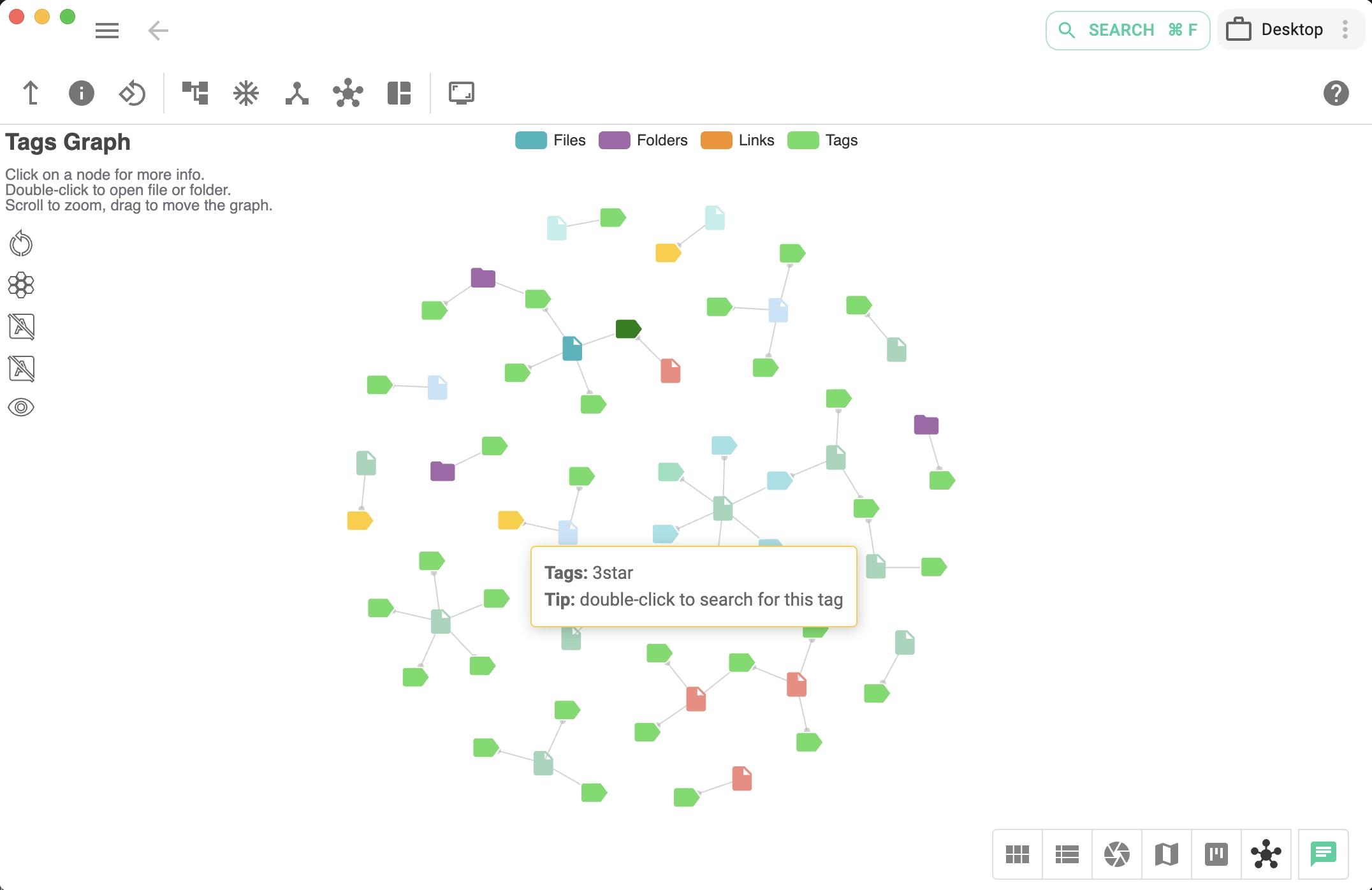
Clicking on the button marked with an arrow in the next screenshot will turn the change the graph layout to a circle. A click on the next two buttons will turn on and off the name of the tags and file/folder respectively.
Links Graph View
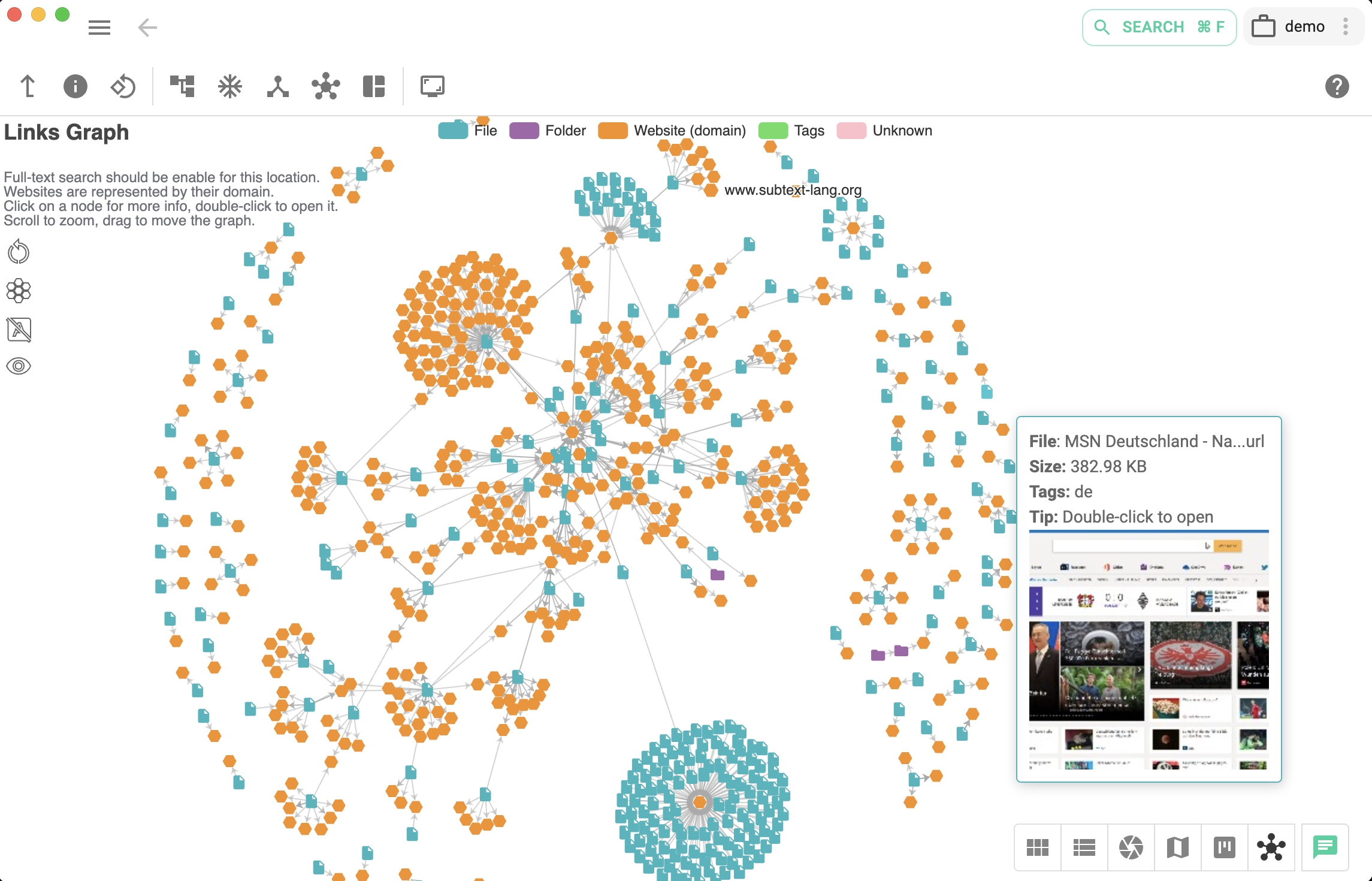
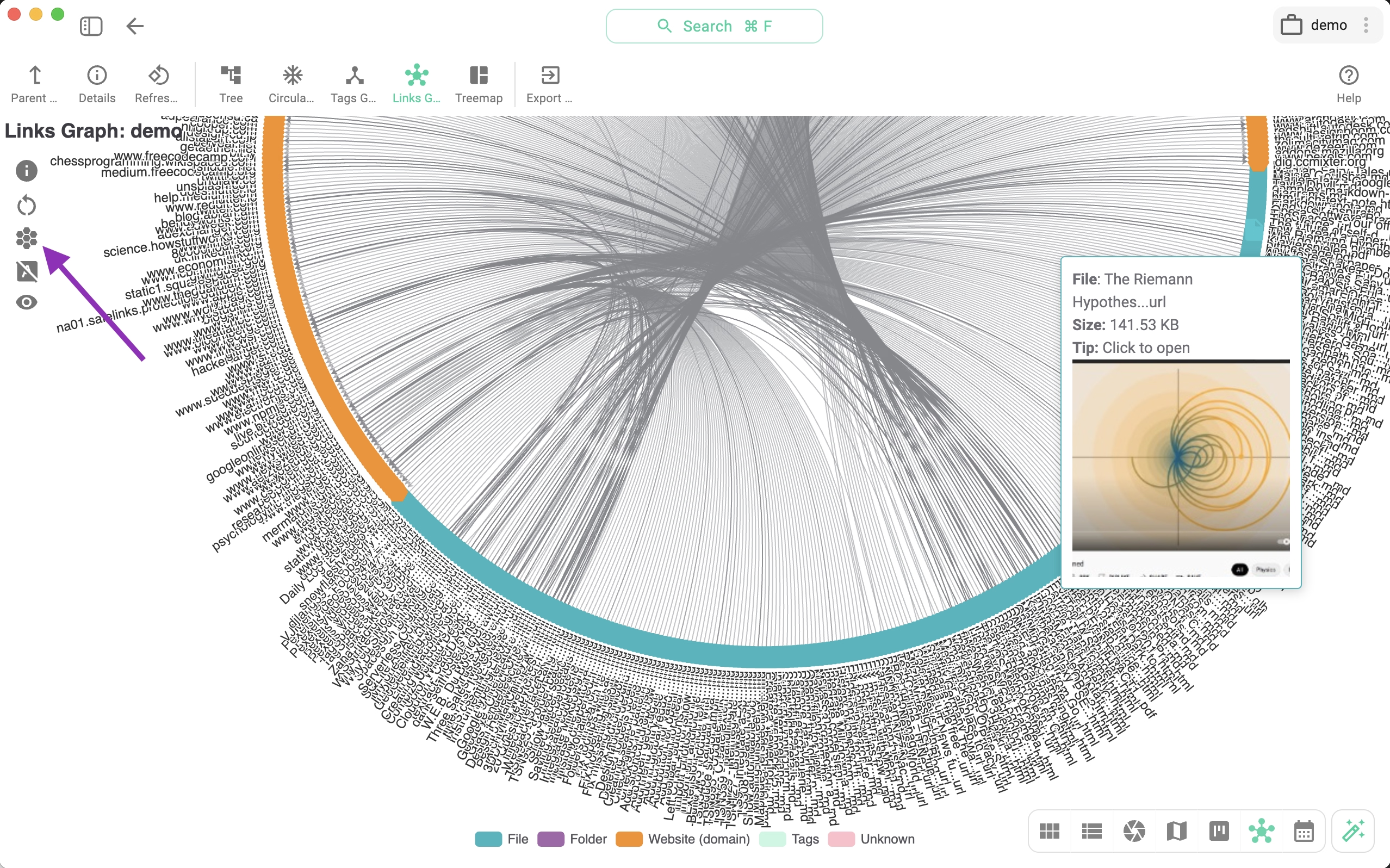
The Links Graph View shows relationships between files, folders, and external websites based on links found in your content.
- Arrows indicate the direction of links
- Only files and folders that participate in links are shown
- Use the legend to toggle files, folders, websites, or tags
Clicking on the button marked with an arrow in the next screenshot will turn the graph into a circle. A click on the next button will turn on and off the name of the nodes.
- Full-text search with link extraction must be enabled for the location
- Links are detected in plain text, Markdown, HTML, PDF files, and file or folder descriptions
- Links between the files and folder have to be in the tagspaces' link format in order to be displayed here.
Treemap View
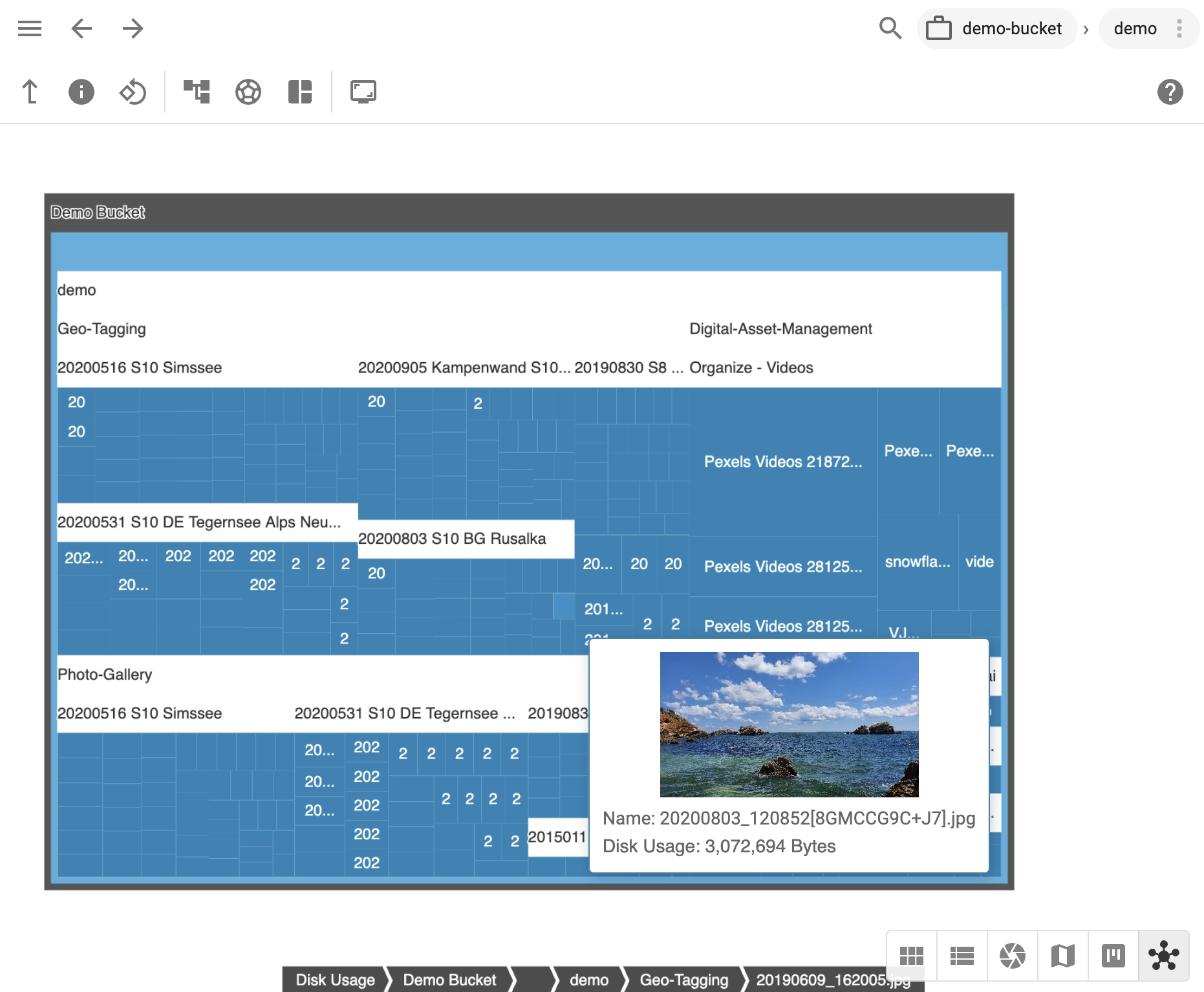
The Treemap View represents files and folders as tiles, where each tile’s size reflects the file’s size relative to others. This makes it easy to identify large files or folders that consume significant disk space.
Why use FolderViz?
The FolderViz Perspective gives you visual clarity that traditional file lists can’t provide. Whether you want to analyze folder structures, understand tag usage, discover hidden links, or identify large files, FolderViz helps you explore your data faster and more intuitively—turning complex file systems into insights you can act on.